Run ChindaLLM 4B in LM Studio
By the end, ChindaLLM 4B answers in Thai in LM Studio's chat window, with no code.
You need Windows, macOS or Linux, and room for a 2.5 GB download.
1. Install LM Studio
Download LM Studio for your system from lmstudio.ai and install it.
2. Download the model
Open Mission Control (the search icon on the left), search for chinda, choose openthai-chinda-v1.0-qwen3-4b-gguf and click Download.
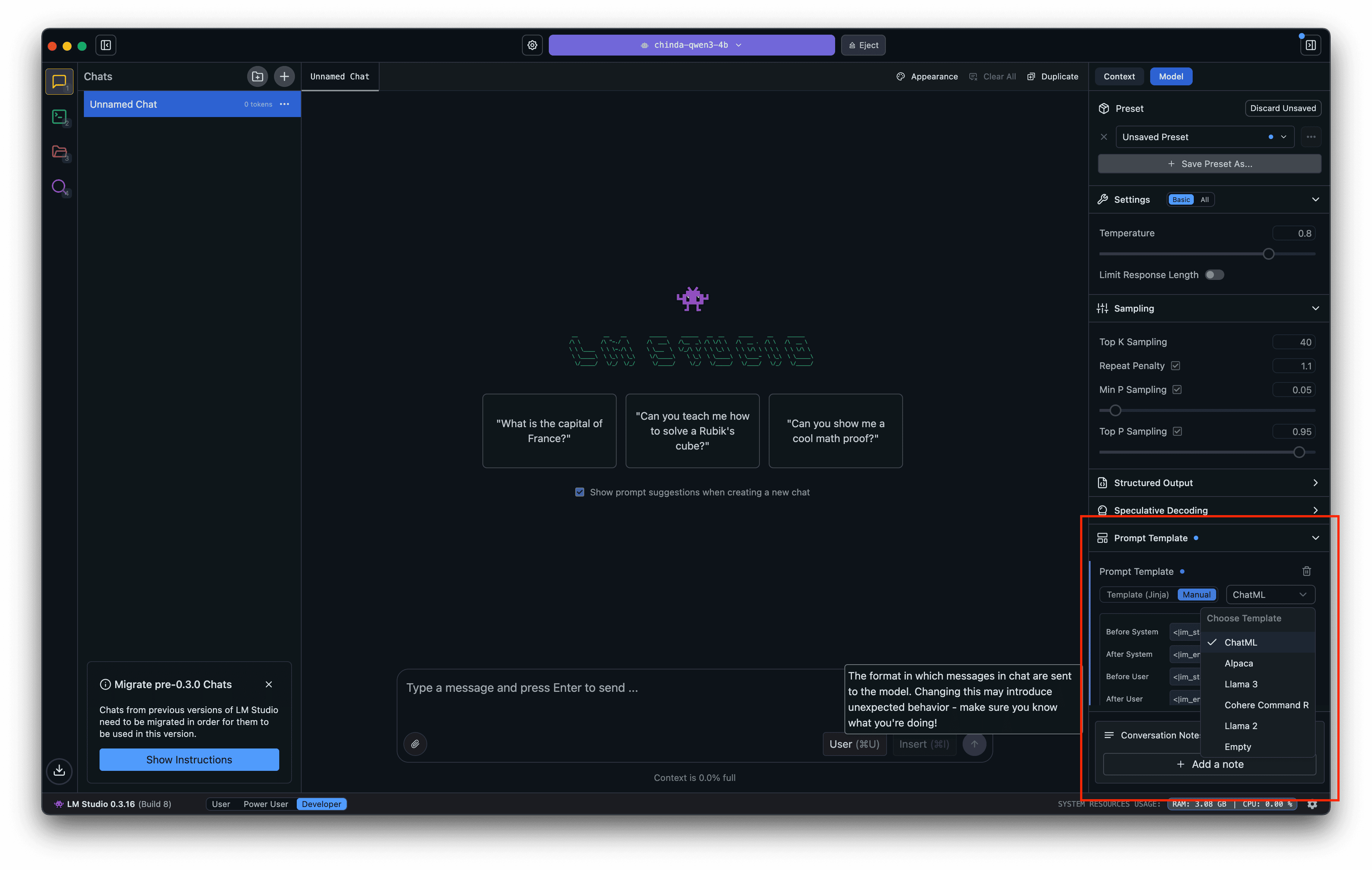
3. Load it with ChatML
Click Load Model, set the context length and GPU use to suit your machine, and set Prompt Template to ChatML: with any other template the model may not stop answering.
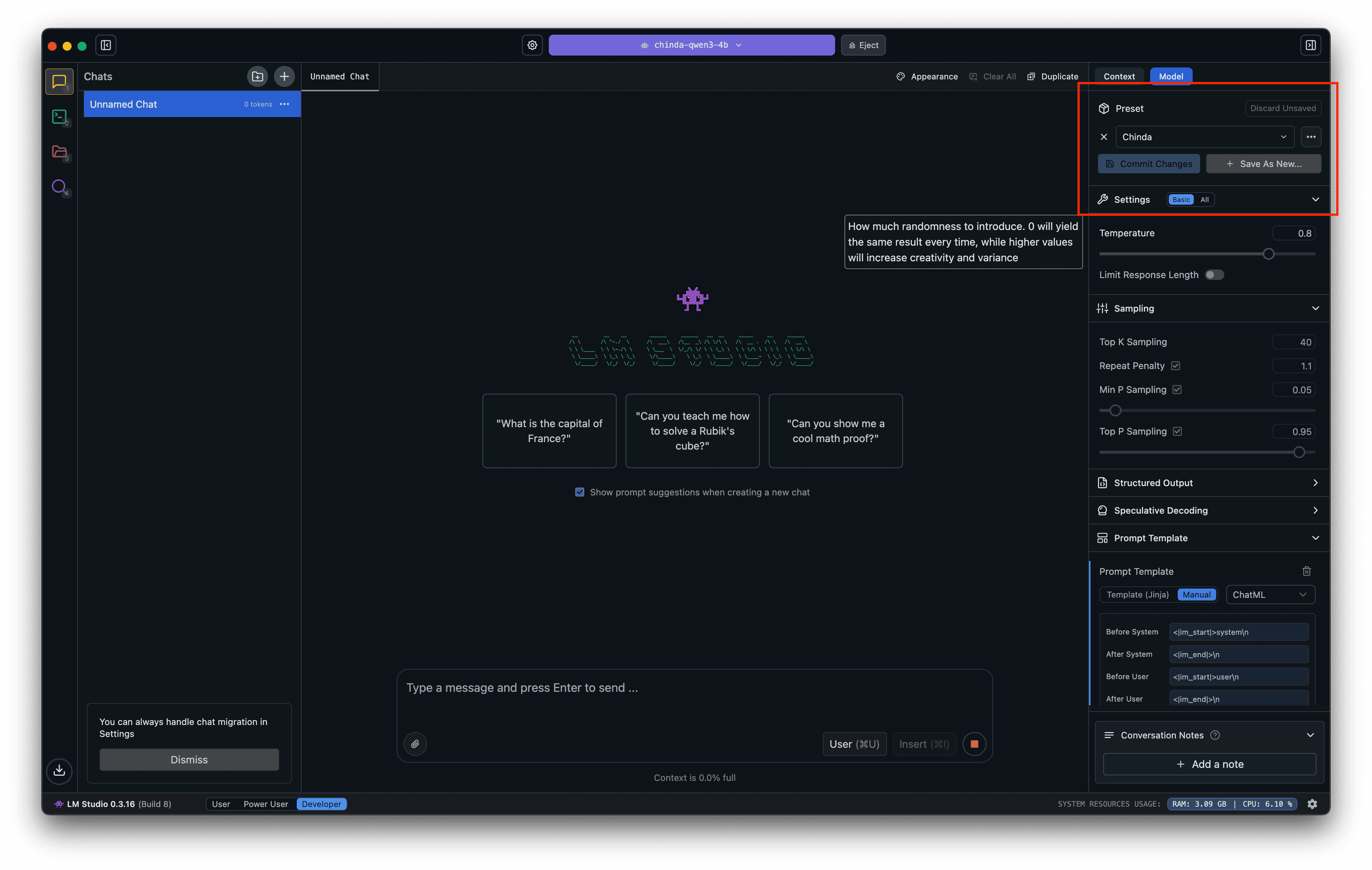
4. Save a preset
Save these settings as a preset named Chinda, and choose that preset whenever you chat with the model.
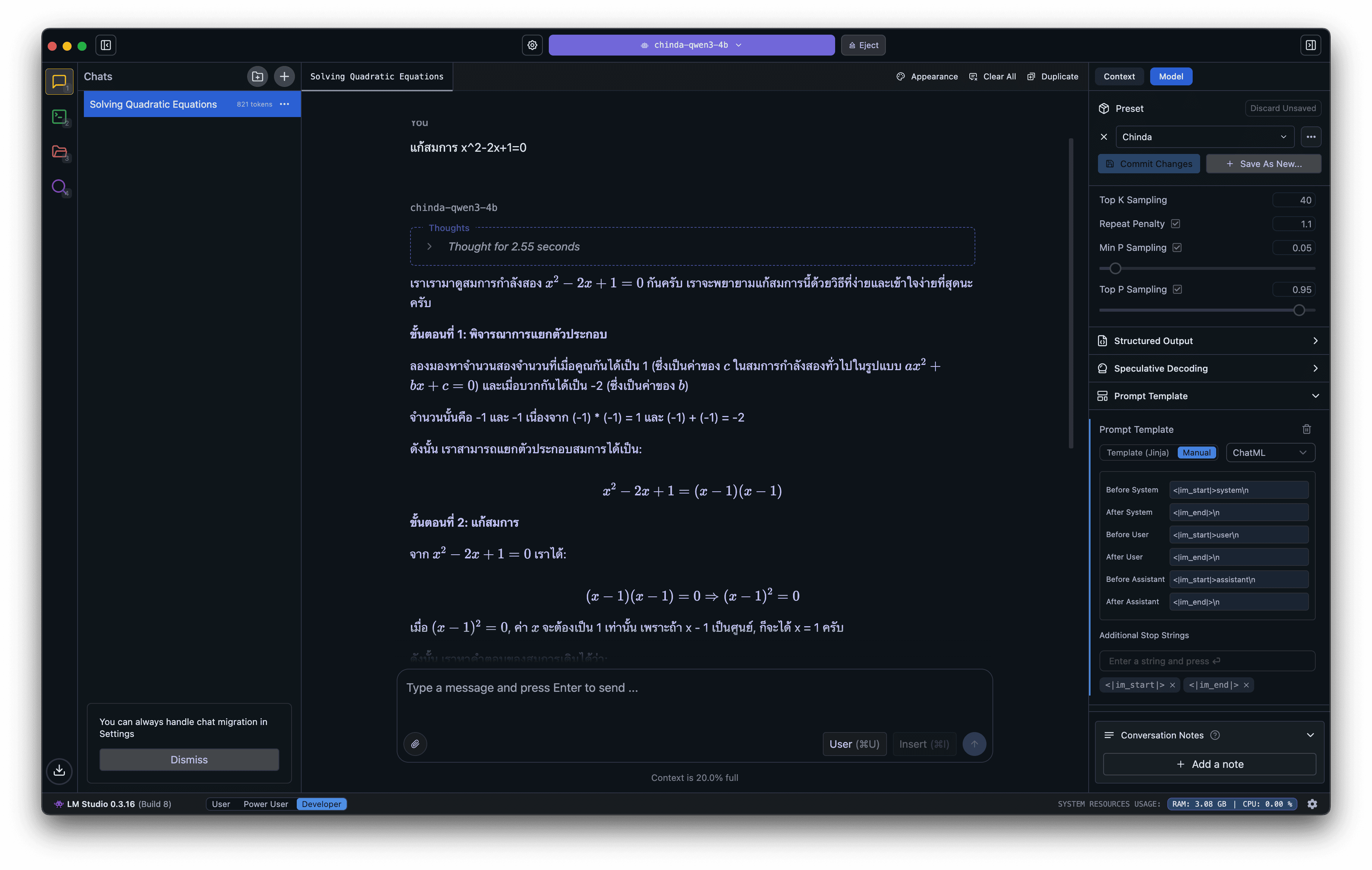
5. Ask a question
Type your question in Thai in the box at the bottom of the chat.
Troubleshooting
The model does not stop answering. Click Stop, choose Model > Eject Model, and load it again with the ChatML template.
Chinda 4B answers best with the relevant text in the prompt; asked for facts on their own, such as recent news or statistics, it can give wrong answers.
Benchmarks and licence: ChindaLLM 4B · Weights: Hugging Face